

Software Training Session 2

Training material and helpful references for FIRST Robotics Competition (FRC) software development.
TBD

Part 1

The last update made to the code was to simply get the motor to turn on.  Instead let’s make the necessary code changes so that:

  1. The subsystem support methods for changing the motor speed (based on voltage applied) and direction.
    1. Reference https://docs.wpilib.org/en/stable/docs/software/commandbased/subsystems.html
  2. That commands are used to execute those commands in the sub-system.
    1. Reference: https://docs.wpilib.org/en/stable/docs/software/commandbased/commands.html
  3. That commands can be initiated and via a Dashboard or Shuffleboard:
    1. Reference: https://docs.wpilib.org/en/stable/docs/software/dashboards/index.html

Code we can try adding:

Constants.java

public static class MotorSpeedConstants {
  public static final double CRAWL_FORWARD = 0.01;
  public static final double WALK_FORWARD = 0.02;
  public static final double RUN_FORWARD = 0.03;
  public static final double CRAWL_BACKWARD = -0.01;
  public static final double WALK_BACKWARD = -0.02;
  public static final double RUN_BACKWARD = -0.03;
}
RobotContainer.java
Add this import at near top of file where the other imports are:

import edu.wpi.first.wpilibj.smartdashboard.SmartDashboard;

Now add these into class:

public RobotContainer() {

  SmartDashboard.putData("Walk Forward Command", m_exampleSubsystem.walkForward());
  SmartDashboard.putData("Halt Command", m_exampleSubsystem.Halt());
  SmartDashboard.putData("Walk Backward Command", m_exampleSubsystem.walkBackward());

  // Configure the trigger bindings
  //configureBindings();
}
ExampleSubsystem.java
Add this import at near top of file where the other imports are:

import edu.wpi.first.wpilibj.smartdashboard.SmartDashboard;
Now add these into class:

public void SetSpeed (double speed) {
  motor.set(speed);
}
public Command walkForward() {
  return runOnce(() -> SetSpeed(MotorSpeedConstants.WALK_FORWARD));
}
public Command runForward() {
  return runOnce(() -> SetSpeed(MotorSpeedConstants.RUN_FORWARD));
}
public Command crawlBackward() {
  return runOnce(() -> SetSpeed(MotorSpeedConstants.CRAWL_BACKWARD));
}
public Command walkBackward() {
  return runOnce(() -> SetSpeed(MotorSpeedConstants.WALK_BACKWARD));
}
public Command runBackward() {
  return runOnce(() -> SetSpeed(MotorSpeedConstants.RUN_BACKWARD));
}
public Command Halt() {
  return runOnce(() -> SetSpeed(0));
}


public void periodic() {
  // This method will be called once per scheduler run
  SmartDashboard.putNumber("Motor Speed", motor.get());
}
Comment out the setting of the motor power like below because instead we will control via commands
  public ExampleSubsystem() {
    ...
    //motor.set(0.2)
Next ensure the code builds clean.  If so, next step will be to deploy the code to the Roborio and enable it.  Once enabled, go the the settings tab on the Driver Station (the one with a gear icon), and select Dashboard Type = SmartDashboard.  What do you see?  You should see what you added to the SmartDashboard.  Try the buttons to see if they work as you expect.
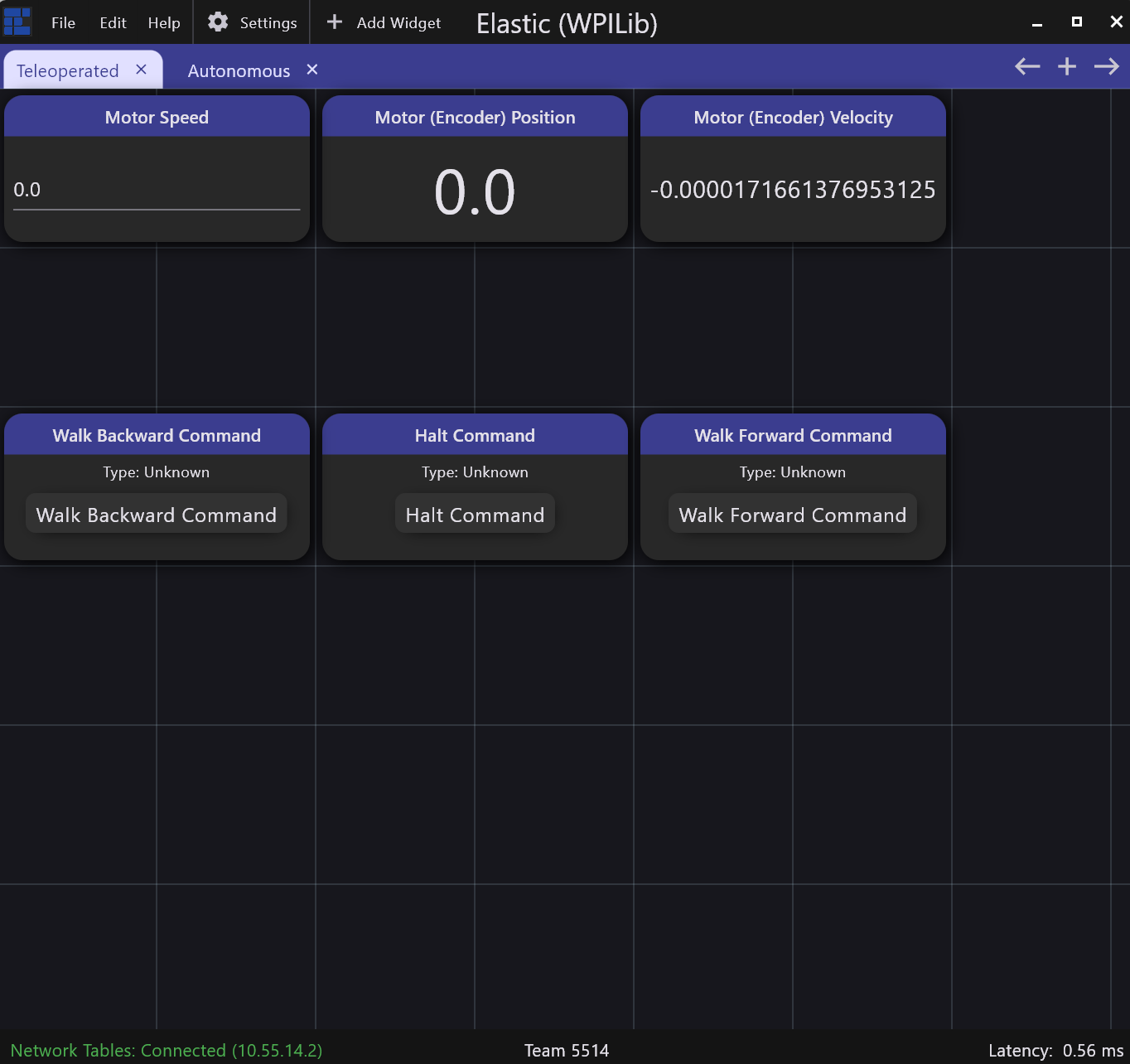
Now we will try using a different Dashboard that has more option and is better visually call Elastic, you can find it in the WPILib Tools area.  Once it opens, try adding some widgets.  For example here is mine:
Currently the motor’s speed and direction is changed using the .set() method.  This just translates into a specific voltage applied to the motor.

  • What if we want to spin the motor’s axle at a specific rate (velocity)?
  • What if the motor’s axle was connected to arm where we wanted to move the arm to a specific angle (position)?

This requires a sensor called an “Encoder”.  Lets consider the following steps required to add support Position:

  1. Add an encoder object to the subsystem that controls the motor.
  2. Add functions to the subsystem to get the encoder Distance measurement.
  3. Update ExampleCommand.java to implement a command requests we “CRAWL” to a specific distance within some tolerance.
  4. Add these commands to the “SmartDashboard”.
  5. Add support to run that new command using a joystick or some controller.

Code we can try adding:

ExampleSubsystem.java

import com.revrobotics.RelativeEncoder;
...

public class ExampleSubsystem extends SubsystemBase {
...
  private RelativeEncoder Encoder;

...
  public ExampleSubsystem() {
    ...

    Encoder = motor.getEncoder();
    Encoder.setPosition(0);


 ...

   public void periodic() {
...
    SmartDashboard.putNumber("Motor Speed", motor.get());
    SmartDashboard.putNumber("Motor (Encoder) Velocity", Encoder.getVelocity());
    SmartDashboard.putNumber("Motor (Encoder) Position", Encoder.getPosition());
 ...

  public double GetPosition () {
    return Encoder.getPosition();
  }

ExampleCommand.java

public class ExampleCommand extends Command {
...
  private double m_target_distance;
  private double m_current_distance;
  private double m_distance_tolerance;

...

  // Called when the command is initially scheduled.
  @Override
  public void initialize() {
    m_target_distance = SmartDashboard.getNumber("Target Distance", 10.0);
    m_distance_tolerance = SmartDashboard.getNumber("Position Tolerance", 2.0);
  }

  // Called every time the scheduler runs while the command is scheduled.
  @Override
  public void execute() {
    m_current_distance=m_subsystem.GetPosition();
    if (m_current_distance<m_target_distance)
      m_subsystem.SetSpeed(MotorSpeedConstants.WALK_FORWARD);
    else if (m_current_distance>m_target_distance)
      m_subsystem.SetSpeed(MotorSpeedConstants.WALK_BACKWARD);
  }


  // Called once the command ends or is interrupted.
  @Override
  public void end(boolean interrupted) {
    m_subsystem.SetSpeed(0);
  }


  // Returns true when the command should end.
  @Override
  public boolean isFinished() {
    if (Math.abs(m_current_distance-m_target_distance)<m_distance_tolerance)
      return true;
    else
      return false;
  }
}

Robot Container.java

// Replace with CommandPS4Controller or CommandJoystick if needed
  private final CommandPS4Controller m_driverController =
      new CommandPS4Controller(OperatorConstants.kDriverControllerPort);
...

  public RobotContainer() {


...

    SmartDashboard.putNumber("Target Distance", 10.0);
    SmartDashboard.putNumber("Position Tolerance", 2.0);
    SmartDashboard.putData("Walk To Position Command", new ExampleCommand(m_exampleSubsystem));
    // Configure the trigger bindings
    configureBindings();

...
  private void configureBindings() {
    // Schedule `ExampleCommand` when `exampleCondition` changes to `true`
    //new Trigger(m_exampleSubsystem::exampleCondition)
    //    .onTrue(new ExampleCommand(m_exampleSubsystem));

    // Schedule `exampleMethodCommand` when the Xbox controller's B button is pressed,
    // cancelling on release.
    m_driverController.cross().onTrue(new ExampleCommand(m_exampleSubsystem));
  }
Try to build and compile again.  You will now be able to either use the Dashboard button or controller button to execute the command to “Walk To Position”.  You will want to add these to your Elastic dashboard, making sure to select the “Show Submit Button” for the Target Position and Position Tolerance widgets.  Give it a try, how small of a tolerance works?  Why can we stop at the exact Target Position?
What if we could more optimally move to that distance and have less or even zero tolerance?  This is where the concept of PID comes into picture.  This video provides a good overview: